

✂️ Split Multi-Page PDFs into Separate Documents
Document split allows you to break a multi-page PDF into several separate documents and parse each one individually. This is useful when multiple documents — such as invoices, receipts, or statements — arrive bundled together in a single file.
How to configure it
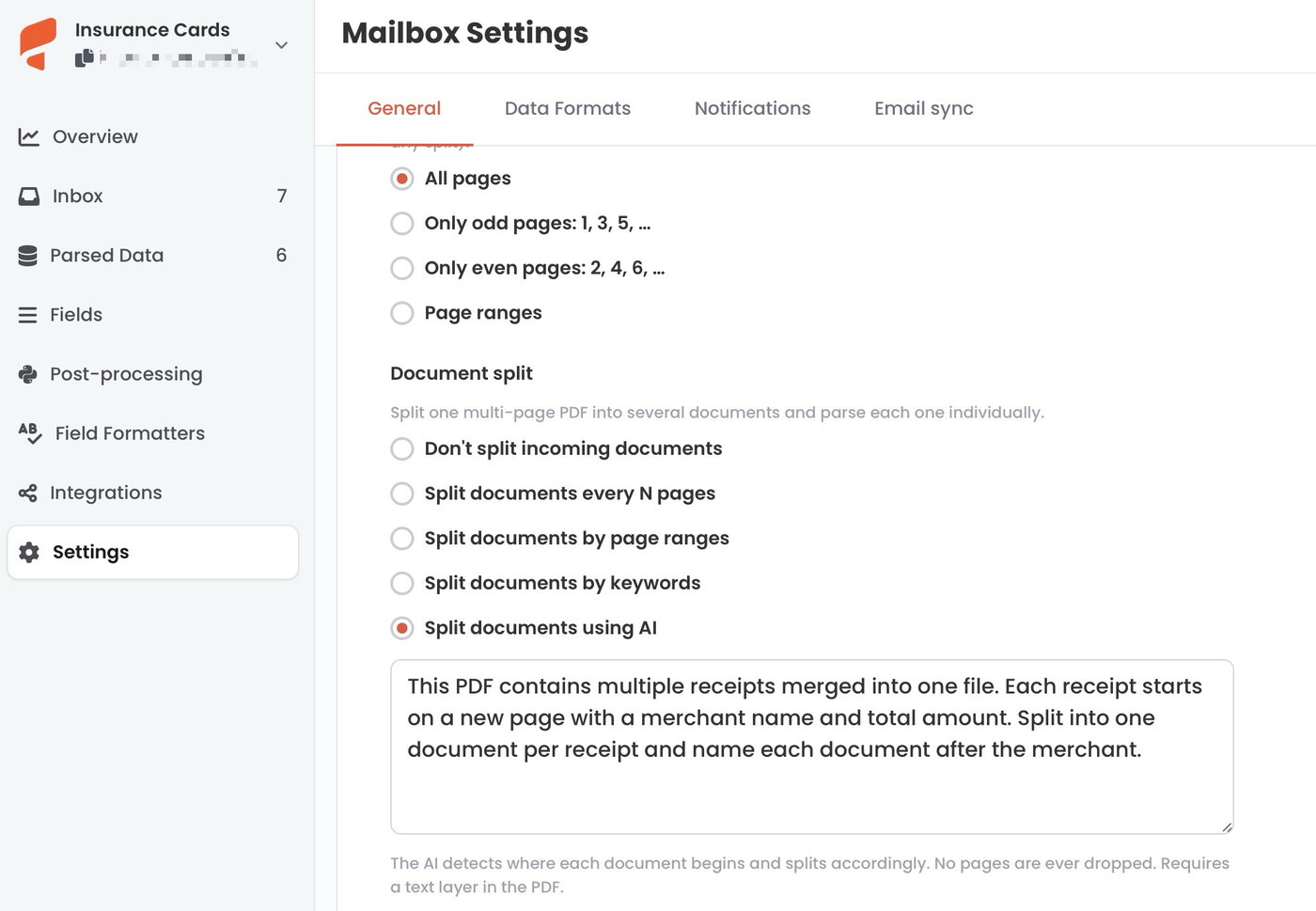
Open your mailbox, go to Settings → General, and scroll to the Document split section. Choose one of five modes.
Split documents every N pages
Divides the PDF into equal chunks of N pages. Setting N to 2 on a 6-page document produces three 2-page documents.
Split documents by page ranges
Define exactly which pages form each document using a comma-separated list, e.g. 1-3, 4-6 or 1, 3-5, (1) ("(1)" = last page). Pages not covered by any range are dropped.
Split documents by keywords
Parsio scans the text of each page and starts a new document whenever it finds a matching keyword. Add multiple keywords, each with:
Position — split before the page containing the keyword, or after it.
Regular expression — treat the keyword as a regex pattern.
Case sensitive — matching is case-insensitive by default.
Every page is always included in some output document — no pages are ever dropped.
Split documents using AI
The AI automatically detects where each document begins and splits accordingly — the most flexible mode, handling mixed document types and variable page counts without manual configuration.
Add optional instructions to guide it, for example:
This PDF contains multiple receipts merged into one file. Each receipt starts on a new page with a merchant name and total amount. Split into one document per receipt and name each document after the merchant.
The AI also names each resulting document based on its content. No pages are ever dropped.
Requires a text layer
Keyword and AI split read the PDF's text layer. Scanned PDFs without a text layer can't be split by keyword or AI — use every-N-pages or page ranges instead.
Interaction with Page processing
If page processing is also enabled, it runs first — pages are filtered before the split. The split then operates on the already-filtered PDF.