

📄 Download to File
Parsio lets you download extracted data directly from your mailbox as a file. This is useful if you want to work with the data offline, share it with teammates, or import it into another system manually.
You can export your parsed data in Excel (XLSX), CSV, or JSON format in just a few clicks.
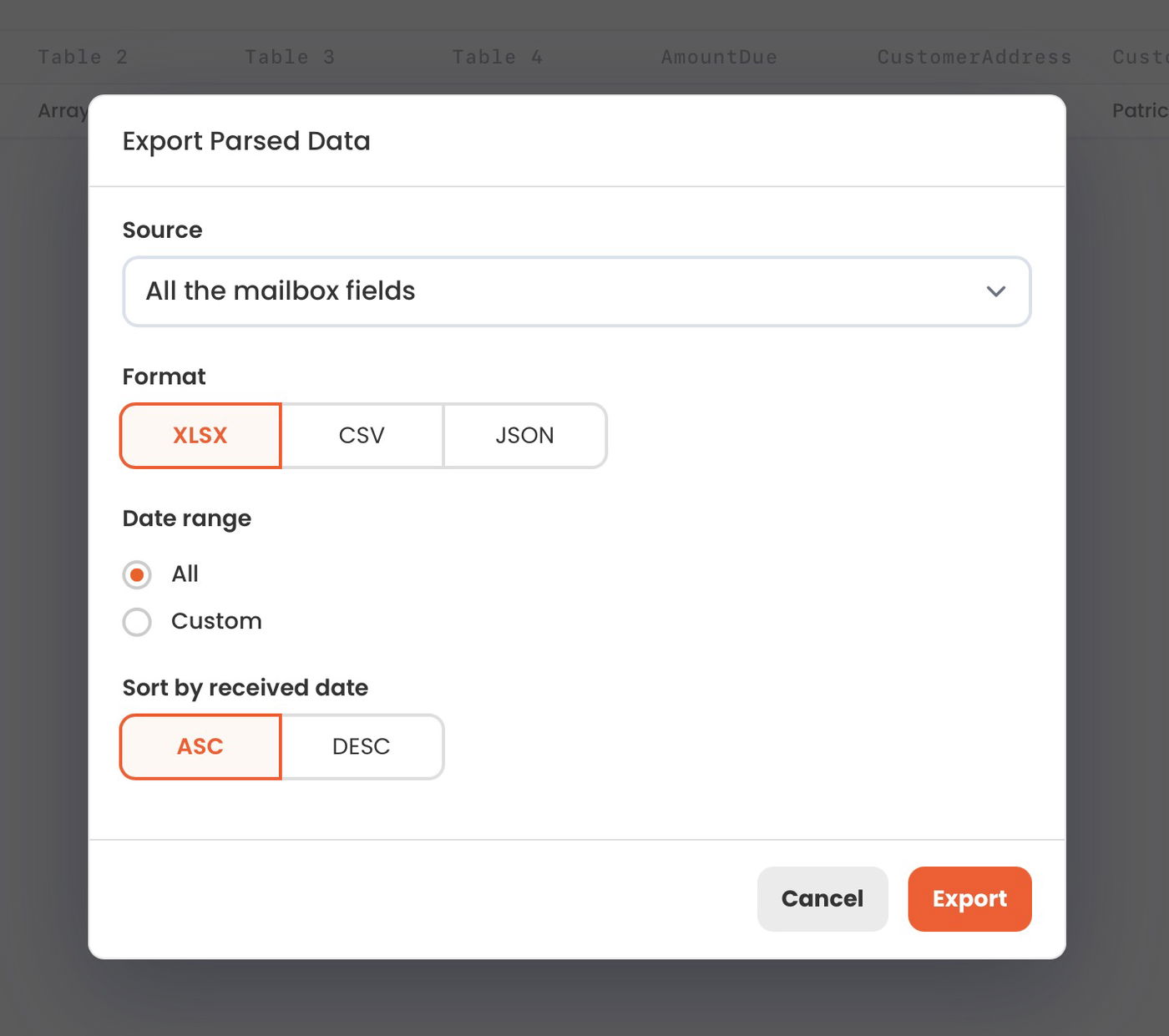
How to download extracted data from Parsio
Open your Parsio mailbox
Go to the Parsed data page
Click Export
This will open the export dialog where you can configure how the file should be generated.
Export options explained
File format
Choose the format that best fits your workflow:
CSV – best for spreadsheets, databases, and simple data processing
XLSX (Excel) – ideal for reporting and manual review
JSON – useful for developers and API-based integrations
Date range
All – export all parsed documents in the mailbox
Custom – export data from a specific time period only
This is helpful if you want to download recent data or run periodic exports.
Sorting
You can sort records by received date:
Ascending (ASC) – oldest documents first
Descending (DESC) – newest documents first
Final step
Click Export, and Parsio will generate the file and download it to your computer.
When is “Download to file” useful?
Creating backups of extracted data
Sharing parsed results with colleagues or clients
Importing data into accounting tools, CRMs, or internal systems
Quick one-off exports without setting up integrations
If you need fully automated exports, Parsio also supports integrations like webhooks, Google Sheets, Zapier, Make, and API access.